
How to translate the theme in the Loco Translate plugin
Translating a plugin
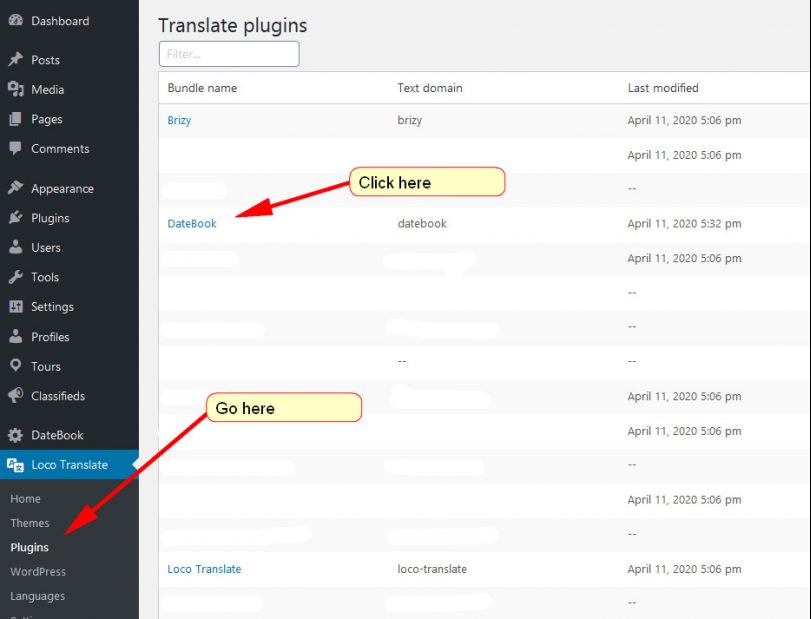
1) Select the DateBook plugin in Loco Translate
Go to WordPress -> Loco Translate -> Plugins. Click DateBook.
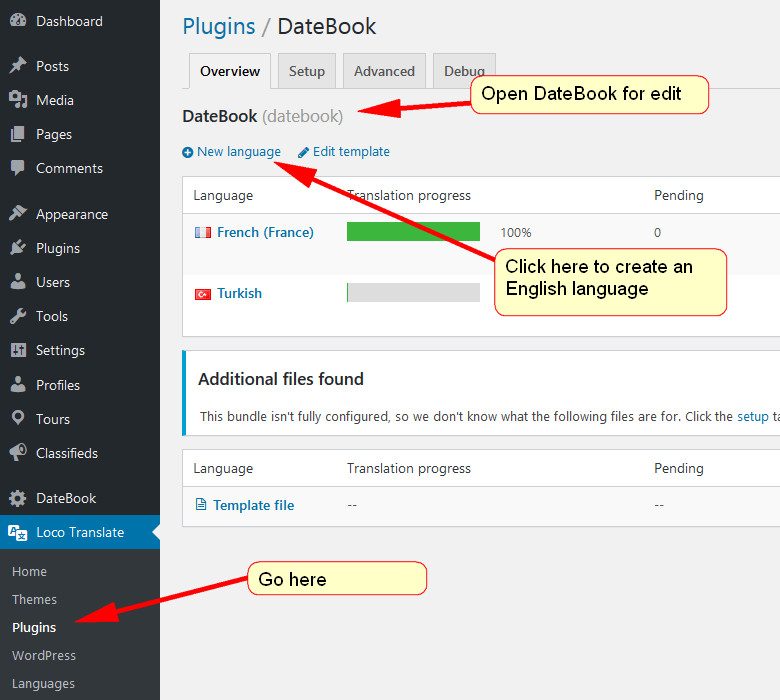
2) Create a new language
If you want to add/create a new language (for example: your own English language or another language: Greek, Irish, Japanese or other), then you should click "New language", as you see below.
If you want to edit the translation, then, find your language and click the Edit button next to that language. See a screenshot in step 6 below.
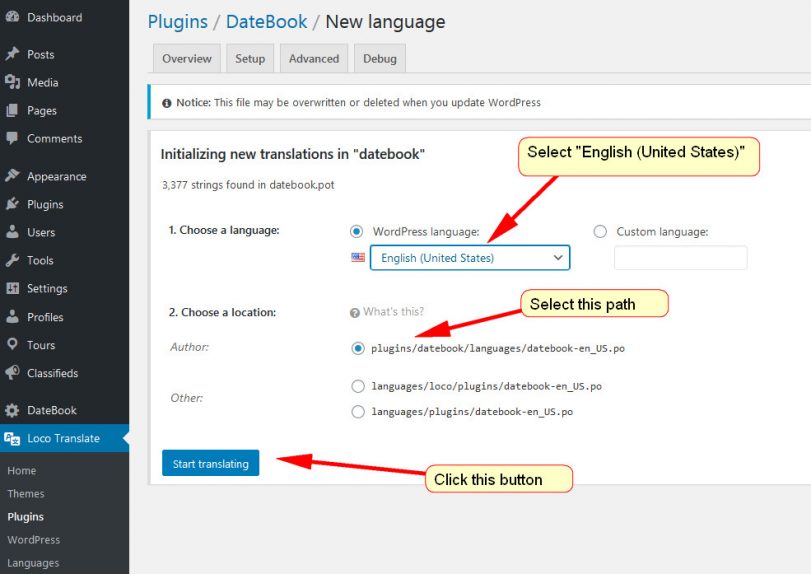
3) Choose a new language
Select a language you would like to create, and click "Start translating". See below how to do that:
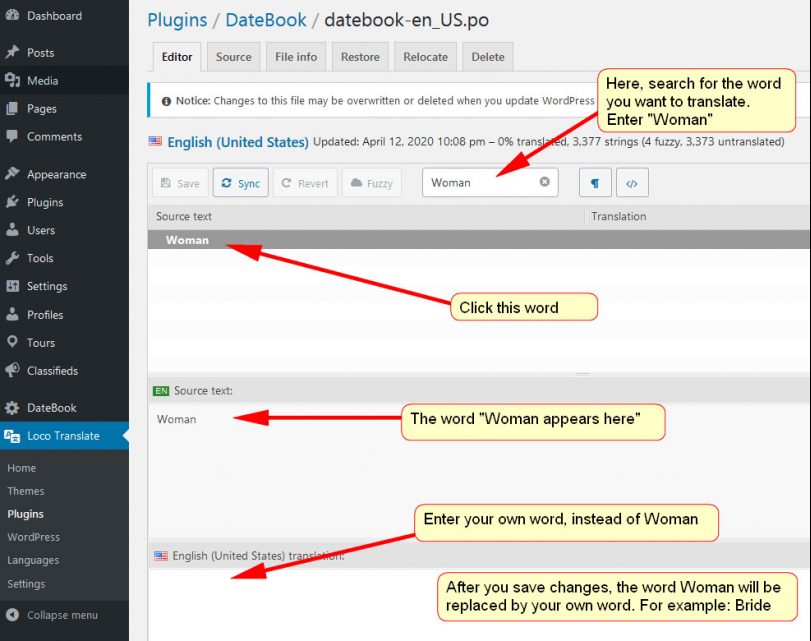
4) Start translating words and phrases
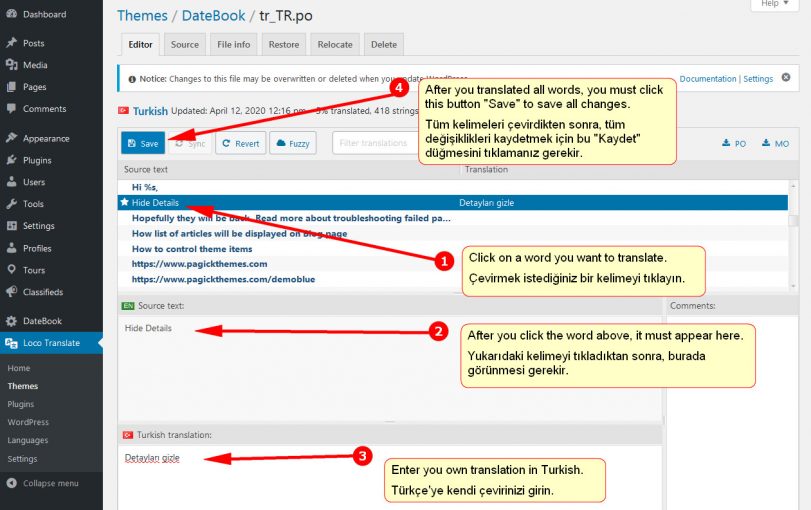
Now, you can search for words of the theme and translate them. After the translated done, remember to save all your changes. See below how to do that:
Translating a theme
5) Select the DateBook theme in Loco Translate
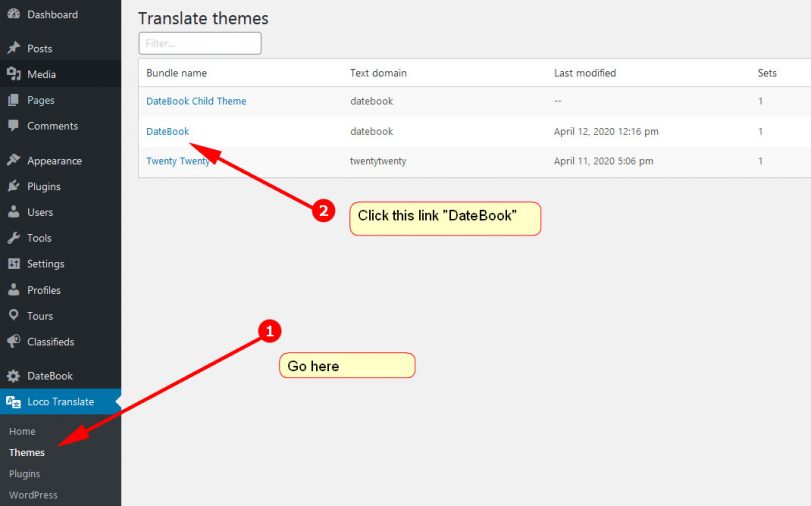
Go to WordPress -> Loco Translate -> Themes. Click DateBook.
6) Select a language and edit it
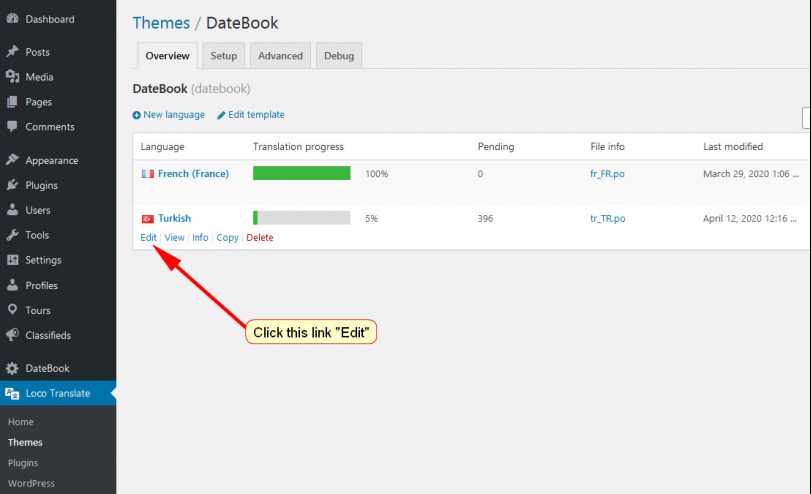
You can create your English or other language or edit an existing language.
1) To create a new language, click "New language" button.
2) To edit an existing language, click the Edit button under the language title, as you see below:
7) Start translating and save
After you completed translating, remember to save the changes.
Done!
Now the theme and plugin are translated.